
How to Connect Instagram to Facebook Messenger: A Step-by-Step Guide

Connecting Instagram to Facebook Messenger unlocks a unified inbox, faster replies, and powerful automation opportunities that can turn casual DMs into real revenue.

In this guide, you’ll get the complete, up-to-date walkthrough for linking Instagram and Facebook Messenger, plus practical tips to use that connection for customer support, lead capture, and sales automation with tools like ChatiOne.

Why Connect Instagram to Facebook Messenger?

Instagram and Facebook both belong to Meta, but they work as separate apps by default. Linking them creates a connected ecosystem where:

  • Facebook Messenger and Instagram DMs can be managed together in a unified inbox (via Meta Business Suite or connected CRMs).
  • You can reply faster from one place instead of switching apps.
  • You unlock cross-platform features like shared ad placements, synchronized insights, and easier automation setups.

For businesses, this isn’t just a convenience—it’s foundational infrastructure for modern social selling and support.

What You Need Before You Start

To connect Instagram to Facebook Messenger successfully, make sure you have:

  • An Instagram Business or Creator account (personal accounts can’t be linked to Facebook Pages for business features).
  • A Facebook Page that you admin.
  • Admin access to both the Instagram account and the Facebook Page.
  • Your login credentials for both accounts handy.
  • Message controls enabled on Instagram (for professional accounts, ensure “Connected tools” or message permissions are on).

If you’re not sure whether your Instagram is a Business/Creator account, go to Settings → Account type and tools in the Instagram app and switch if needed.

How Instagram and Facebook Messenger Work Together

When Instagram is linked to a Facebook Page:

  • Instagram DMs and Facebook Messenger conversations can appear together in Meta Business Suite’s inbox.
  • Third-party tools (like ChatiOne) can connect to your Meta assets and automate replies, qualify leads, and route conversations.
  • New messages from first-time contacts can automatically create or update contact records in connected systems.

The key is that Instagram must be linked to the correct Facebook Page, and that Page must have the right permissions granted to any external tool you use.

Step-by-Step: Connect Instagram to Facebook (and Enable Messenger Integration)

There are three main ways to link Instagram to Facebook. All of them ultimately do the same thing: connect your Instagram account to a specific Facebook Page so Meta treats them as one business entity.

Method 1: Connect From the Instagram App (Recommended for Most Users)
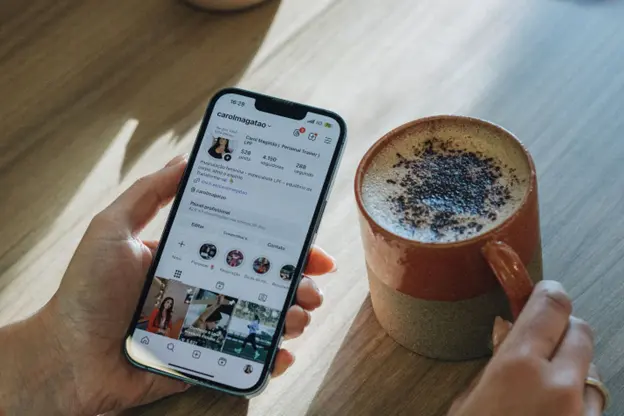
This is the fastest method if you primarily manage things from your phone.

Step 1: Open Instagram and Go to Your Profile

  • Tap your profile picture in the bottom right.
  • Tap the three-line menu in the top right.

Step 2: Open Settings

  • Tap Settings and privacy at the bottom of the menu.

Step 3: Go to Accounts Center or Linked Accounts

  • Look for Accounts Center (Meta’s unified account hub) or Linked accounts.
  • Tap it.

Step 4: Add/Connect Facebook

  • Tap Add accounts or find the Facebook option.
  • Tap Connect to Facebook.
  • You’ll be redirected to Facebook to log in or confirm your account.

Step 5: Choose the Facebook Page

  • After logging in, Facebook will ask which Page to link to your Instagram account.
  • Select the correct Page and confirm.
  • You’ll be returned to Instagram once the connection is established.

At this point, your Instagram is officially linked to your Facebook Page. This is the prerequisite for unified messaging and most automation tools.

Method 2: Connect From Facebook (Desktop or Mobile Browser)

Use this if you prefer working from a computer or need to manage multiple Pages.

Step 1: Go to Your Facebook Page

  • Log in to Facebook.
  • Navigate to the Page you want to link.

Step 2: Open Page Settings

  • Click Settings in the left sidebar of your Page.

Step 3: Find Instagram or Linked Accounts

  • In the settings menu, look for Instagram or Linked accounts.
  • Click it.

Step 4: Connect Your Instagram Account

  • Click Connect account or Link account.
  • A dialog will appear asking for your Instagram username and password.
  • Enter them and log in.
  • Complete any two-factor authentication if prompted.

Step 5: Authorize the Connection

  • Instagram will ask you to confirm that you’re authorizing the connection to the Facebook Page.
  • Tap Authorize or Allow.
  • The link is now established.

Method 3: Connect Through Meta Business Manager (Best for Agencies & Multi-Asset Setups)

If you manage everything through Meta Business Suite or Business Manager, this method gives you the most control.

Step 1: Open Business Settings

  • Go to business.facebook.com.
  • Click the gear icon for Business Settings.

Step 2: Select Your Page

  • Under Accounts, click Pages.
  • Select your Facebook Page.

Step 3: Link Instagram

  • In the Page details panel, look for Instagram accounts or Connect Instagram.
  • Click it and follow the prompts to log into Instagram and authorize the connection.

Step 4: Verify the Connection

  • Once connected, you should see the Instagram account listed under your Page in Business Manager.
  • Go to Instagram accounts in Business Settings to confirm it shows as connected.

Enable Instagram Messages in Your Unified Inbox

Linking the accounts is only half the job. To actually receive Instagram DMs alongside Facebook Messenger messages, you need to enable them in your inbox tool.

In Meta Business Suite

  • Go to Meta Business Suite (business.facebook.com/latest/home or the mobile app).
  • Open Inbox.
  • Make sure both Facebook and Instagram are enabled as message sources.
  • You should now see Instagram DMs and Facebook Messenger messages in a single thread view.

In Connected CRMs and Automation Platforms

Tools like ChatiOne connect to your Meta assets and pull conversations into their own inboxes while also enabling automation.

Typical setup steps:

  • In your platform (e.g., ChatiOne), go to Integrations or Channels.
  • Choose Facebook & Instagram or similar.
  • Log in with the Facebook account that administers your Page.
  • Select the Facebook Page that’s linked to your Instagram.
  • Grant all requested permissions (messages, pages, instagram_basic, etc.).
  • Save and, if available, click Sync or Connect Facebook & Instagram.

Once connected, new messages from Facebook and Instagram will create or update contacts in your system, depending on your deduplication settings.

How to Connect Instagram to Facebook Messenger on Mobile (Direct Messenger App)

If your goal is specifically to see Instagram conversations inside the Facebook Messenger app, Meta has been rolling out features that blend Instagram DMs into Messenger.

On mobile:

  1. Open the Facebook Messenger app and ensure you’re logged in.
  2. Tap the three-line menu in the top left.
  3. Tap the gear icon to open Messenger settings.
  4. Scroll down to Account Center (you may need to tap See more in Account Center).
  5. Tap Accounts.
  6. Tap Add accounts and select your Instagram account.
  7. Confirm the connection when prompted.

After this, Instagram DMs can appear alongside your Facebook Messenger chats in the same app, depending on your region and account type.

Note: This is different from linking Instagram to a Facebook Page for business purposes. For business automation and unified inboxes, you still want the Page-level connection described earlier.

Test Your Connection: Make Sure It Actually Works

Don’t assume everything is working—test it.

Test Facebook Messenger

  1. From a different Facebook account (not your Page admin), open your business’s Facebook Page.
  2. Click Message and send a test message.
  3. In your connected tool (Meta Business Suite, ChatiOne, CRM, etc.), open the inbox.
  4. Confirm the message appears under the correct conversation/contact.

Test Instagram DMs

  1. From a different Instagram account, open your business profile.
  2. Send a new DM.
  3. In your connected inbox, confirm the Instagram message appears.
  4. Reply from the inbox and verify the reply shows up in the Instagram app.

If messages don’t appear:

  • Re-check that the Instagram account is linked to the correct Facebook Page.
  • Confirm messaging permissions are enabled for the connected account.
  • Log out and back into Meta Business Suite or your connected tool.
  • Re-sync or reconnect the integration if needed.

Common Issues and How to Fix Them

“I Don’t See the Option to Connect Instagram”

  • Ensure you’re logged in as an Admin of the Facebook Page.
  • Confirm your Instagram account is a Business or Creator account.
  • Check that your Page isn’t restricted or limited in any way.

“Connection Keeps Failing or Timing Out”

  • This is often a temporary Meta server issue.
  • Wait a few minutes and try again.
  • Clear your browser cache or try a different browser/device.

“My Instagram Is Linked to the Wrong Facebook Page”

  • An Instagram account can only be linked to one Facebook Page at a time.
  • Disconnect it from the current Page in the same settings area, then reconnect to the correct one.

“Business Suite Shows Facebook but Not Instagram”

  • Log out of Meta Business Suite completely and log back in.
  • Ensure both Facebook and Instagram are enabled in the Inbox settings.
  • Confirm the Instagram account is visible under Instagram accounts in Business Settings.

“Messages Aren’t Showing in My CRM/Automation Tool”

  • Verify the correct Page and Instagram account are connected in the tool’s integration settings.
  • Check that all required permissions were granted during connection.
  • Confirm that Instagram message controls allow connected tools (in Instagram app: Settings → Privacy → Messages).
  • Send another test message after rechecking everything.

Turning the Connection Into Growth: Practical Automation Ideas
Once Instagram and Facebook Messenger are connected, the real advantage comes from how you use that unified flow of conversations.

Below are practical, implementable strategies that work especially well with an AI automation platform like ChatiOne.

  1. Instant Replies to Comments and DMs

People expect fast responses. If someone comments “Price?” or “Do you ship to Poland?” on your Instagram post, an instant, helpful reply can be the difference between a sale and a scroll-past.

With ChatiOne, you can:

  • Automatically reply to specific keywords in comments (e.g., “price”, “shipping”, “discount”).
  • Send a follow-up DM with more details, a catalog link, or a checkout page.
  • Keep the tone consistent with your brand by training the AI on your FAQs and product info.

This turns passive scrollers into active conversations without you lifting a finger.

  1. 24/7 Lead Qualification in DMs

Not every DM is a ready-to-buy customer. Some are just curious. An AI assistant can:

  • Ask qualifying questions (e.g., “What are you looking for?”, “What’s your budget?”, “When do you need this?”).
  • Tag or categorize leads based on their answers (hot, warm, cold).
  • Collect contact details (name, email, phone) and push them into your CRM or spreadsheet.

ChatiOne’s AI can be trained on your website, PDFs, or product lists so it answers accurately and consistently, even at 3 AM.

  1. Unified Inbox + Smart Routing

When Facebook and Instagram messages land in one place, you can:

  • See the full conversation history across platforms for each contact.
  • Assign conversations to team members based on language, product line, or region.
  • Use round-robin or rule-based assignment so nothing falls through the cracks.

ChatiOne’s dashboard gives you real-time analytics on response times, conversion rates, and customer satisfaction, so you can continuously improve.

  1. Automated Follow-Ups and Nurturing

Many sales are lost simply because there’s no follow-up. Automation can:

  • Send a friendly follow-up if a lead doesn’t reply within 24 hours.
  • Share case studies, testimonials, or special offers based on the lead’s interests.
  • Move contacts through a simple funnel: awareness → consideration → decision, all via DM.

This is where the Instagram–Facebook connection becomes a revenue engine, not just a messaging convenience.

  1. Multilingual Support Without Extra Headcount

If you serve customers in multiple countries (for example, Poland and other EU markets), an AI assistant can:

  • Detect language and respond naturally in English, Polish, Spanish, Arabic, and 20+ languages.
  • Keep your brand voice consistent across languages.
  • Handle routine questions in any supported language while escalating complex issues to humans.

This is especially valuable for e-commerce, agencies, and local businesses with international clients.

  1. Sentiment-Aware Responses

Not all messages are equal. Some customers are excited; others are frustrated.

ChatiOne’s sentiment analysis allows your automation to:

  • Recognize when a customer is unhappy and respond with extra care.
  • Offer apologies, discounts, or human handoff when needed.
  • Keep happy customers moving smoothly toward purchase with upbeat, confident messaging.

This level of nuance makes automated conversations feel much more human.

Before & After: What Changes When You Connect and Automate

Before Connecting Instagram to Facebook Messenger

  • You constantly switch between Instagram and Facebook apps to check messages.
  • Replies take hours or days, especially at night or on weekends.
  • Hot leads go cold because you missed their DMs or comments.
  • You answer the same questions over and over manually.
  • Growth is limited by how many hours you can personally spend in DMs.

After Connecting and Adding Automation (e.g., ChatiOne)

  • Facebook and Instagram messages flow into one unified inbox.
  • Common questions are answered instantly, 24/7/365.
  • Leads are captured, tagged, and nurtured automatically.
  • You sleep peacefully while AI handles routine conversations and sales.
  • You focus on strategy, content, and high-value relationships instead of repetitive replies.

Best Practices for Long-Term Success

To get the most out of your Instagram–Facebook Messenger connection:

  • Use Meta Business Suite daily for oversight, even if you automate with ChatiOne.
  • Keep your connection active by periodically checking that Instagram is still linked to the correct Page.
  • Train your AI assistant regularly with updated product info, pricing, and policies.
  • Monitor analytics to see which messages convert best and refine your flows.
  • Set clear escalation rules so complex or sensitive issues reach a human quickly.

Frequently Asked Questions

Can I connect multiple Instagram accounts to one Facebook Page?

No. A Facebook Page can only be linked to one Instagram account at a time. However, you can manage multiple Instagram accounts in Meta Business Manager, each linked to a different Page.

Does connecting Instagram to Facebook change my profile?

No. The connection is a backend setting that enables shared management and advertising features. Your Instagram profile looks exactly the same to followers after linking. 
Do I need to connect Instagram to a Facebook Page to run Instagram ads?

Yes. To run ads with Instagram placements through Meta Ads Manager, your Instagram account must be connected to a Facebook Page (which is connected to an ad account). Without this, Instagram ad placements may not be available.

What happens if I disconnect Instagram from my Facebook Page?

You’ll lose shared features like the unified inbox, cross-platform scheduling in Business Suite, and some ad placement options. Your content, followers, and history remain intact—only the management connection is affected.

Can I message my Instagram followers from Facebook Messenger?

On mobile, Meta has been integrating Instagram DMs into the Facebook Messenger app via Account Center. However, for business use (Pages, ads, automation), the recommended setup is linking Instagram to a Facebook Page and using Meta Business Suite or a tool like ChatiOne for unified messaging.

Can automation tools like ChatiOne work with both Instagram and Facebook messages?

Yes. Once your Instagram is linked to a Facebook Page and you grant the necessary permissions, platforms like ChatiOne can:

  • Access both Instagram DMs and Facebook Messenger conversations.
  • Automate replies, qualify leads, and route messages.
  • Provide analytics and sentiment-aware responses across both channels.

Ready to Turn DMs Into a Growth Engine? 
Connecting Instagram to Facebook Messenger is the first step. The real advantage comes from using that connection to automate conversations, capture leads, and close sales—even while you sleep.

If you run a business in Warsaw or anywhere else and want to:

  • Reply to Instagram and Facebook messages instantly, 24/7
  • Automate FAQs, lead qualification, and follow-ups
  • Grow revenue without hiring more support staff

Then, an AI automation platform like ChatiOne can help you do exactly that.

You can start by:

  1. Connecting your Instagram to your Facebook Page using the steps above.
  2. Linking your Meta assets to ChatiOne in a few clicks.
  3. Training the AI with your website, FAQs, and product info.
  4. Watching as routine conversations and sales run on autopilot.

The infrastructure is simple. The impact on your business can be massive.